Step-By-Step Tenant Portal Login and Payment Instructions
1) Sign in
Go to the portal link: https://www.realtimerental.com/tenant/login and enter your email and password, then click Sign In.
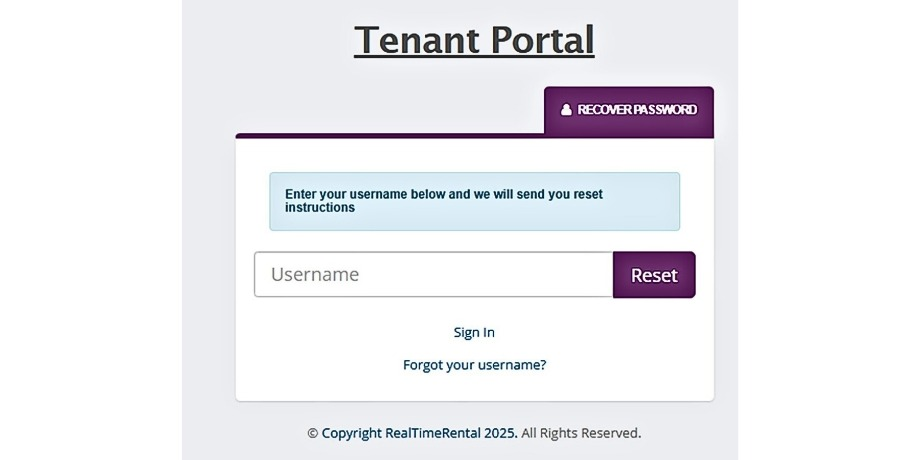
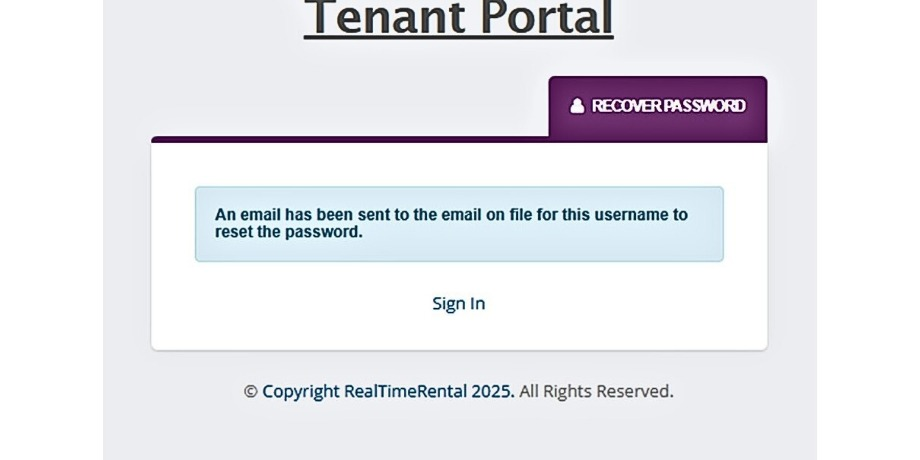
If you get a wrong-password error, use Forgot your Password? to reset it. Be sure you check the email that you used to create your portal – if you do not receive an email to reset your password, please contact Homestead. If Homestead resets your portal credentials, you don't need to change them—your portal doesn't store banking or credit card info, so there's no security risk of Homestead having your password.
2) View your lease
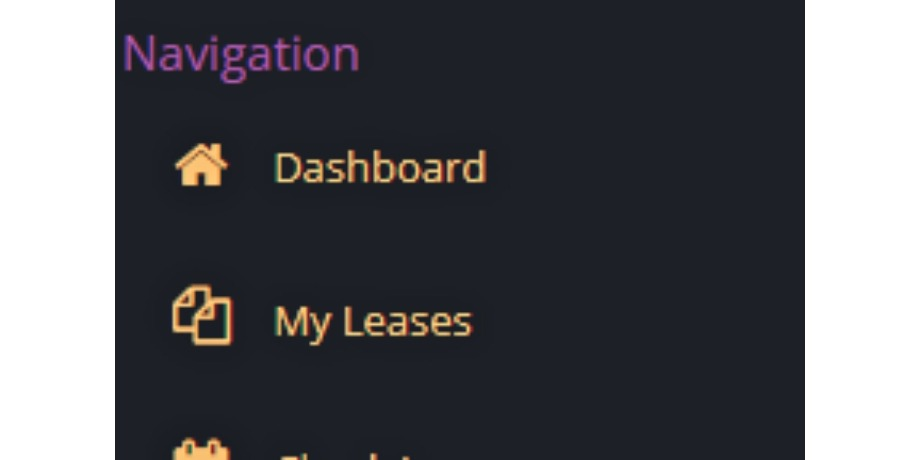
After signing in, go to the tab My Leases.
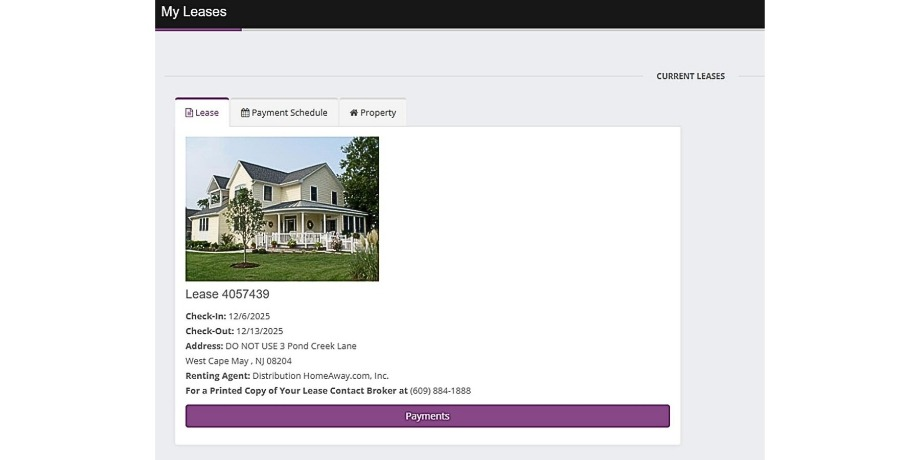
Once inside the My Leases tab, you will see your current lease(s).
3) Make a payment
Click Payments, the purple bar at the bottom of lease.
Click each item that you want to pay for in the current payment. (NOTE: Select ONLY the line item you wish to pay now.) The amount you will be paying for the line items you chose will be displayed at the bottom of the screen for you to see your total prior to making the payment.
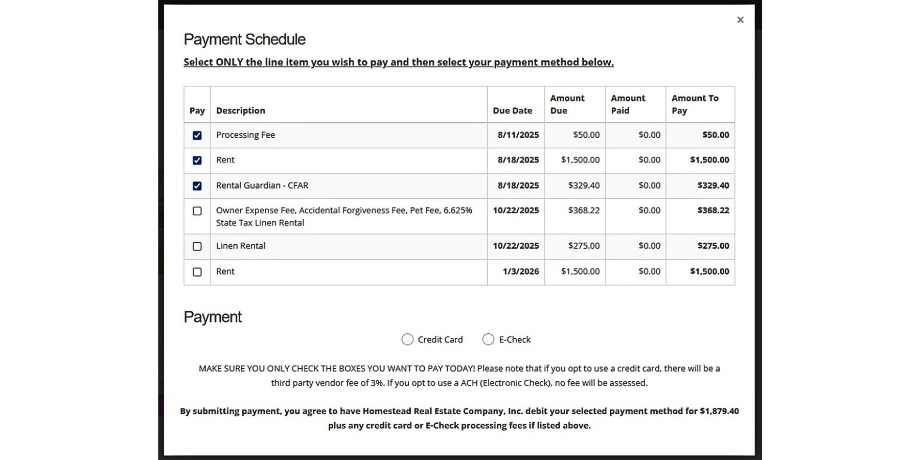
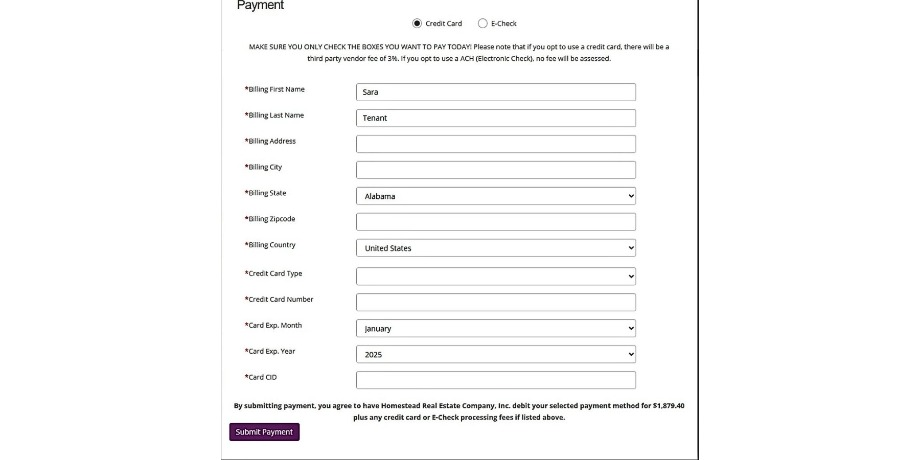
Choose the payment type – Credit Card or E-Check.
If you choose to use a Credit Card, enter your information and press the Submit Payment button at the bottom of the page. (Please note there will be a 3% third party vendor fee.)
If you choose to use an E-Check, choose the type of account you are using (Checking or Savings) and then input your banking information as shown on the sample check visual. Once complete hit the Submit Payment button at the bottom of the page.
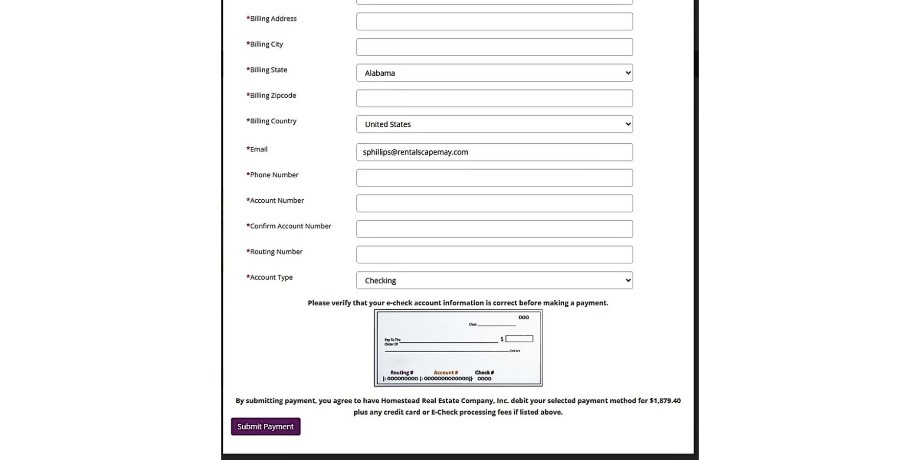
Note: You may not use an E-Check within 30 days prior to your check in.
4) Confirmations & receipts
After payment you will receive an email receipt.
You will also see that your Amount Paid and Amount Due on the lease in your portal has changed.
If you do not see either of these confirmations, please contact Homestead.

Quick Links
E-Newsletter Signup
Copyright © 2026 Homestead Cape May BE2. All Rights Reserved. Web Design by InterCoastal Net Designs